Getting Started
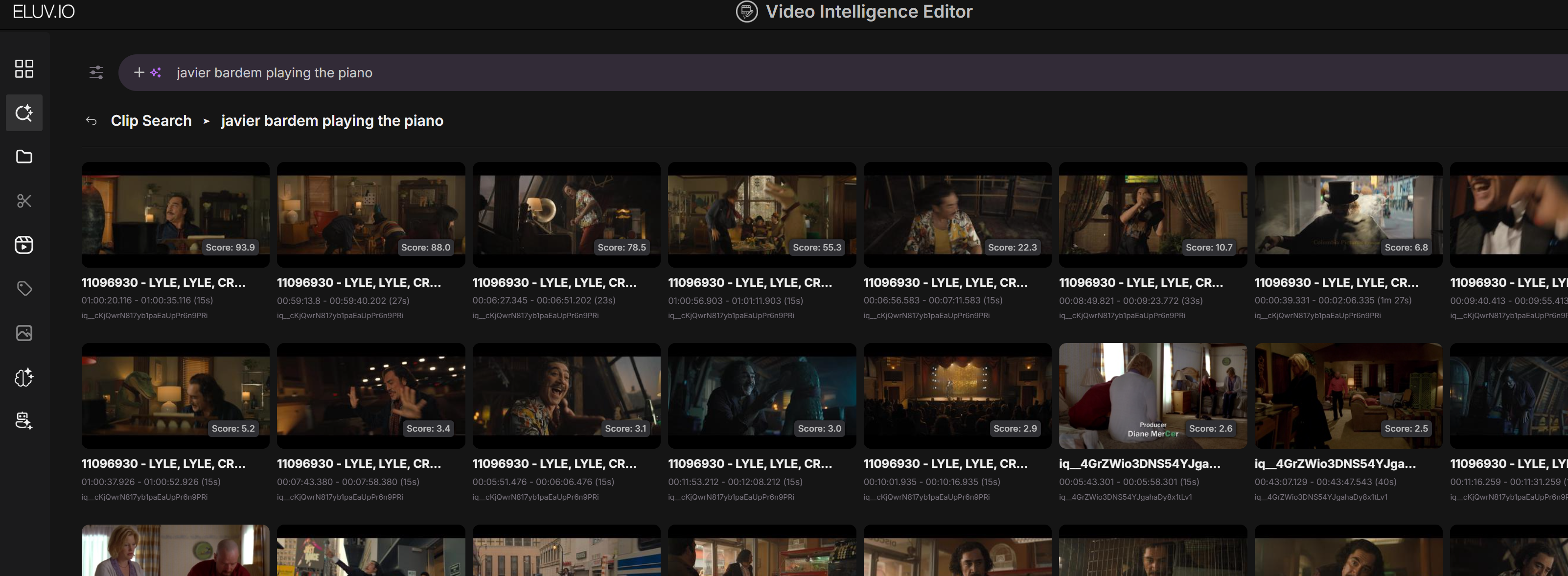
The following setup will show you how to enable semantic search on arbitrary video in the Eluvio Content Fabric for Clip Search Minimal Setup.
Tagging content
First we must generate searchable tags on our content. The easiest way to do this is to run AI models via the EVIE AI Runtime application: https://dev.contentfabric.io/apps/Video%20Intelligence%20Editor#tagging/
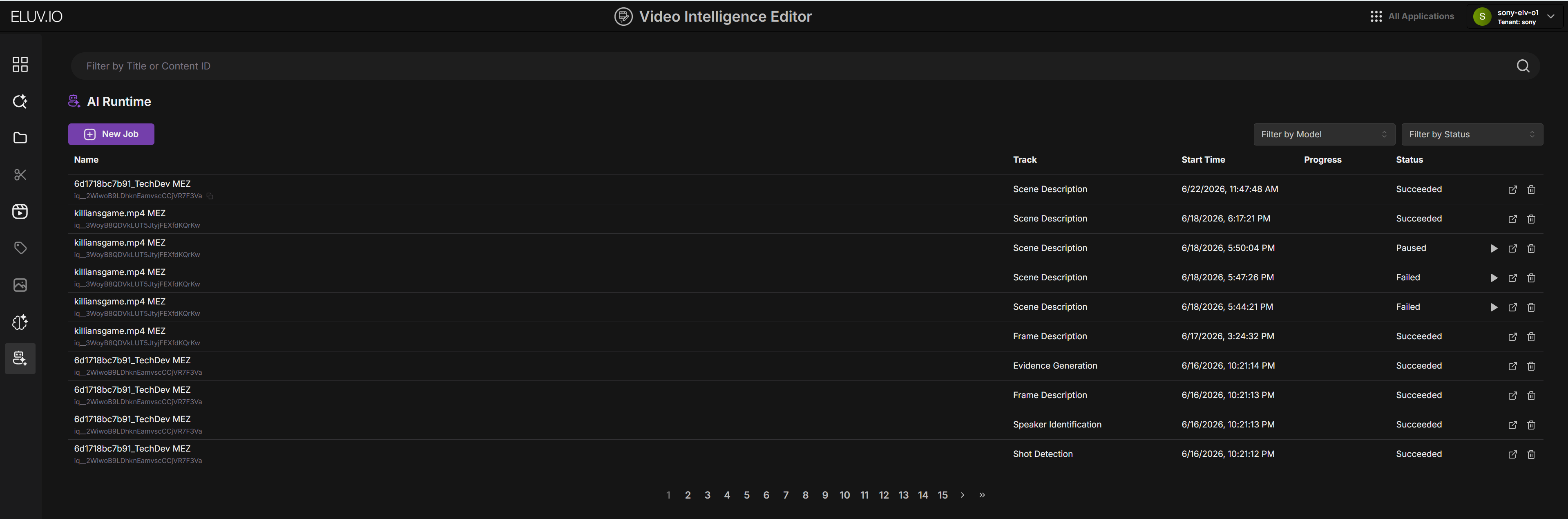
Shot Detection
Always run shot detection
Currently, clip-search depends on the existence of the shot_detection model having been run. This allows the returned clips to be aligned to shot boundaries which provides the best experience.
Tagger API
Alternatively, you may elect to use the tagger API directly
- host: https://ai.contentfabric.io/tagging-live
- html docs: /api/tagger/eluvio-tagger-api
Tagstore API
Tags don't need to be generated via AI, you may also add tags directly via the tagstore API.
- html docs: /api/tagstore/tagstore-api
Search Space Setup
The next step is to configure your search space. A search space defines a grouping of searchable content.
1. Create a space content object in the fabric
A search space must be associated with a content object in the Content Fabric.
The easiest way to create a content object is through the Fabric Browser application.
- Navigate to https://core.v3.contentfabric.io/apps/Fabric%20Browser#/ and sign in with your private key
- Click on the library you wish to add the content object to
- Click on "More Options" -> "Create"
- Once the creation finalizes: copy the "Auth Token" for the next step.
2. Create a collection in the vectorstore
Create a collection containing a list of qids for content objects you wish to index, as well the relevant tenant id.
Note: in order for the clip search API to return playable clips: the contents must be VOD/Title-Mezzanine type.
POST /collections HTTP/1.1
Host: https://ai.contentfabric.io/vectorstore
Authorization: Bearer <token>
Content-Type: application/json

{
  "name": "my collection",
  "qids": [
    "<qid1>",
    "<qid2>"
  ],
  "tenant": "<tenant id>"
}
Getting the tenant id (via Fabric Browser)
- Click on user icon in top right of fabric browser and select "Profile"
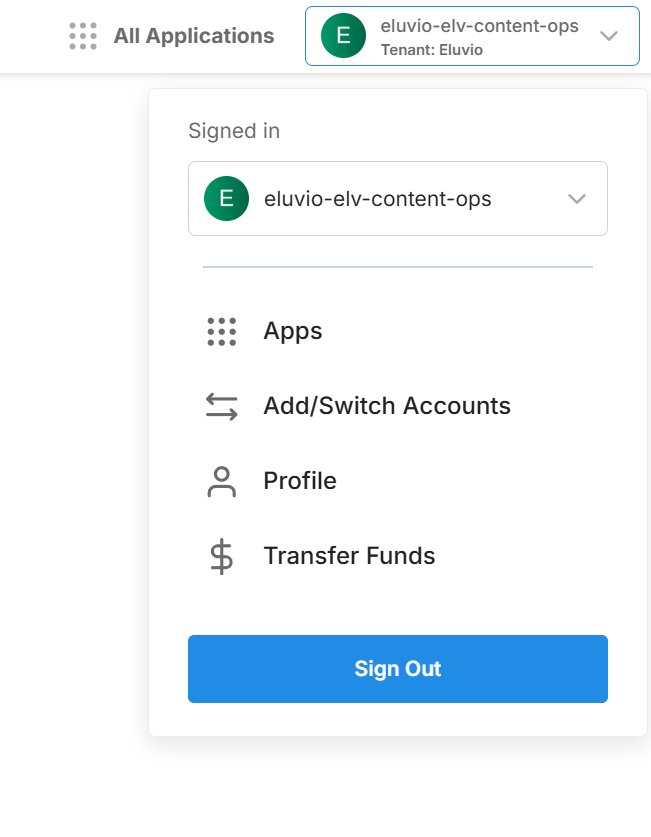
- Copy the tenant id located under the user icon
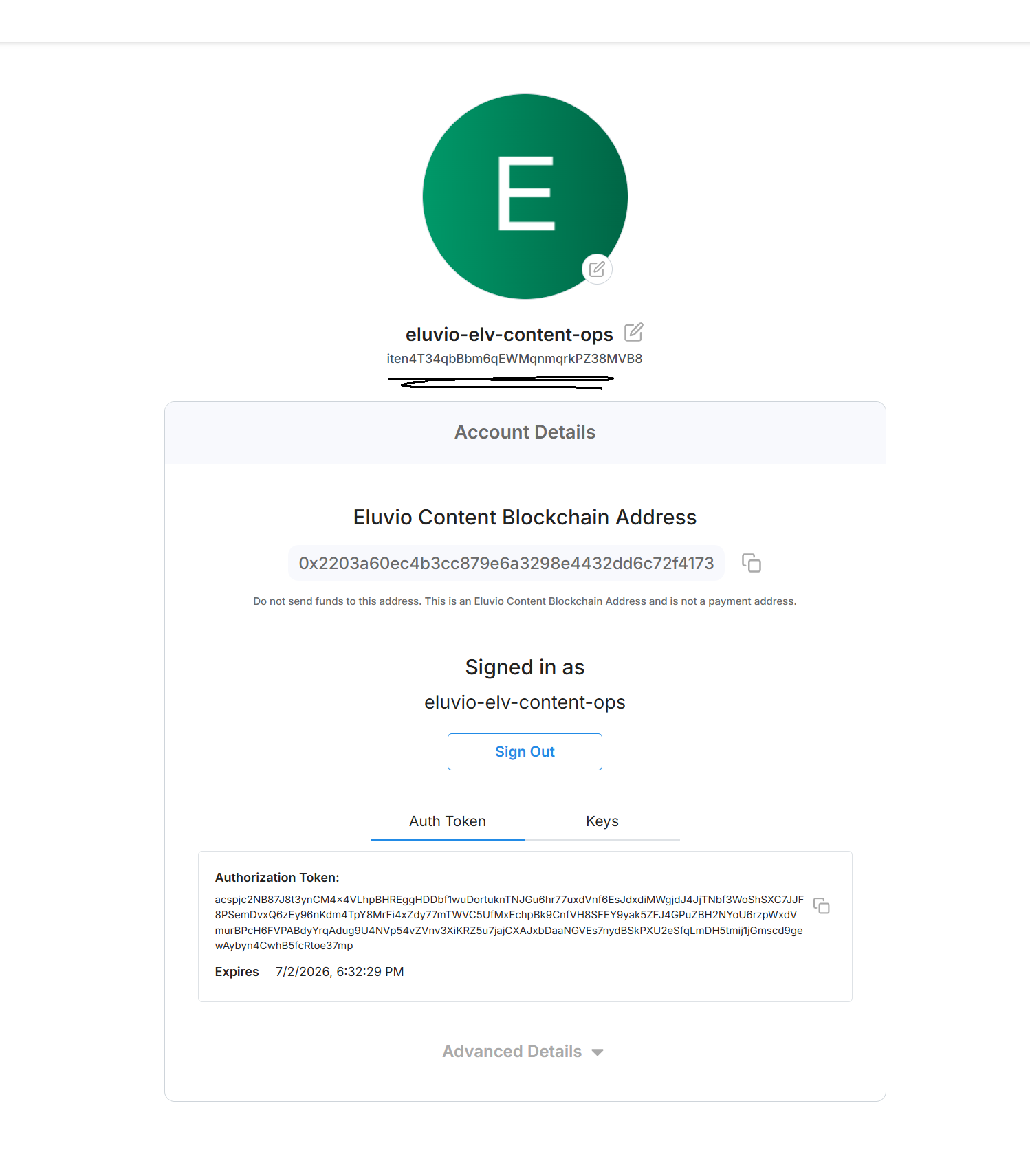
3. Create a clip-search space in the vectorstore
Create a new space with type set to "clip-search", collection_id set to the collection you created in the last step, and <qid> set to the content object qid you created in step 1.
POST /spaces/<qid> HTTP/1.1
Host: https://ai.contentfabric.io/vectorstore
Authorization: Bearer <token>
Content-Type: application/json

{
	"collection_id": "<collection_id>",
	"name": "test",
	"type": "clip-search",
}
4. (optional) Check indexing status
After creating your space and pointing it to your content collection, all tags associated with your content will be indexed automatically. This is an asynchronous process and you may check the progress by calling the status API on the space content object.
GET /spaces/<qid> HTTP/1.1
Host: https://ai.contentfabric.io/elv-indexer/spaces/<qid>
Authorization: Bearer <token>
Content-Type: application/json
Using the search
EVIE
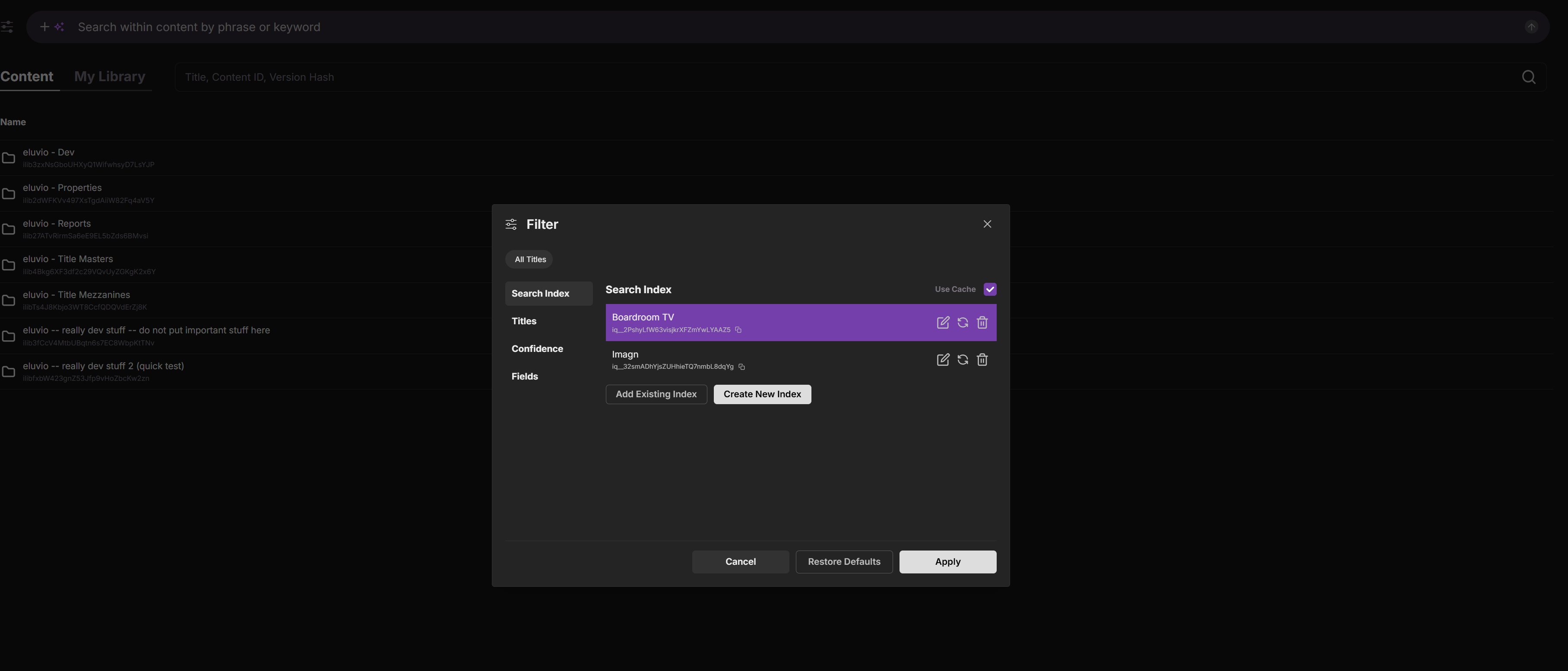
Click on index configuration

Select Add Existing Index and enter the content id for the space.