Create your organization's Google Play developer account
One developer account holds all of your company's apps, so if you already have one there is nothing to create. Jump to adding your team.
Two things to confirm before you skip:
- The account is the Organization type, not Personal. Play Console shows it as Account type on the Developer account page. The warning below explains why that matters.
- The account is verified and in good standing. Play Console shows any outstanding verification or policy issue on its home page.
This creates the account that will own your app, your app signing key, and your Google Play listing. No code is involved in this step.
The account type cannot be changed later. A Personal account lists an individual as the developer, and new Personal accounts must run a closed test with at least 12 testers for 14 days before they are allowed to publish to production at all. Organization accounts are exempt from that requirement.
Get a D-U-N-S number
Google requires a D-U-N-S number registered to your legal entity for organization accounts, with no exemptions for businesses. It is a free nine-digit business identifier issued by Dun & Bradstreet.
-
If your organization has ever enrolled in the Apple Developer Program, you already have one. Use the same number.
-
Otherwise, look your company up or request a number from Dun & Bradstreet. Google warns this can take up to 30 days, so start early.
-
Check the record. The legal name and address Google sees on it must exactly match what you enter in Play Console. Fix the D&B record before you register, not after.
Government organizations that cannot obtain a D-U-N-S number can contact Google Play support for an alternative.
Create a Google account for the organization
Do not register with a personal Google account belonging to one employee. Ownership of a developer account is hard to move, and you lose control of it when that person leaves.
-
Create a shared company email address you control, for example
play-developer@yourcompany.com. A distribution list or shared mailbox is ideal. -
Create a Google account with that address, or use a Google Workspace account on your domain.
-
Enable 2-Step Verification. Use a phone number that will outlast any single employee's tenure — ideally a company-owned device or VOIP line.
-
Store the credentials and recovery details in your company password manager.
This account becomes the developer account owner. Only the owner can transfer the account, accept some agreements, and manage the most sensitive settings. Treat it as shared infrastructure, not as one person's login.
Register in Play Console
-
Sign in to Play Console signup with the shared account you just created.
-
Choose An organization or business as the account type.
-
Provide what Google asks for, which includes:
- D-U-N-S number from the first step
- Organization name, address and phone number — as on the D-U-N-S record
- Website — a live site on your company's domain
- Contact name, email and phone — Google verifies these, and the email and phone become your developer contact details
- Developer name — the name shown under your app on Google Play. Choose carefully; this is what customers see.
-
Accept the Google Play Developer Distribution Agreement and pay the $25 one-time registration fee.
Verification
Google then verifies your organization and the contact person's identity. Expect requests for a government-issued photo ID and possibly official business documents, and verification codes sent to the contact email and phone.
-
Watch the shared inbox and Play Console's home page for requests. Respond quickly — a stalled verification usually just needs one document.
-
If Google asks for proof of your legal entity, send official registration paperwork (articles of incorporation, business license), not a screenshot of your website.
You can create apps and start uploading while verification is in progress, but you cannot publish until it completes.
Record your developer account ID
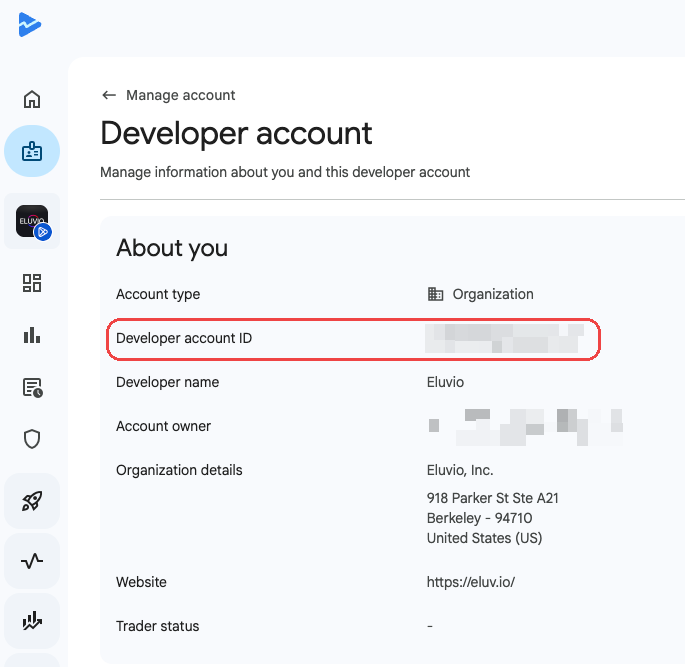
In Play Console, click Manage account in the left sidebar, then Developer account.
Note your Developer account ID — a long numeric string. Google support asks for it in every conversation, and it is how you will tell Eluvio which account to expect an invitation from.
Payments profile
Only needed if your app will ever charge money through Google Play — paid download, in-app purchase, or subscription. Set up a payments profile, including tax and banking information, from Manage account in the left sidebar.
If your property sells content, check how Google Play's Payments policy applies to the way the app points users at purchases. The rules depend on where you distribute: in the US, Google currently allows other billing and links to outside purchases, subject to its own programs and fees, while elsewhere selling digital content inside the app generally has to go through Google Play's billing system. An app that only plays content bought elsewhere, and never prompts users to buy, is unaffected.
The rules are still changing, so raise this with your Eluvio contact before you submit.
Next
With the account in place, add the people who need access.