Test with internal testing
This is where you rejoin the process if Eluvio handled the build for you. Whoever compiled it, you are the one publishing it and answering for it, so check it yourself on real hardware before it goes to review.
Do not send an unverified build for review. A rejection costs days; an internal testing round trip costs minutes. Installing from Google Play, rather than sideloading, also tests the build exactly as Google will deliver it, signed with the app signing key.
Add internal testers
Internal testing is for up to 100 people you choose by email address. No review is required, and builds are available within minutes of rollout.
-
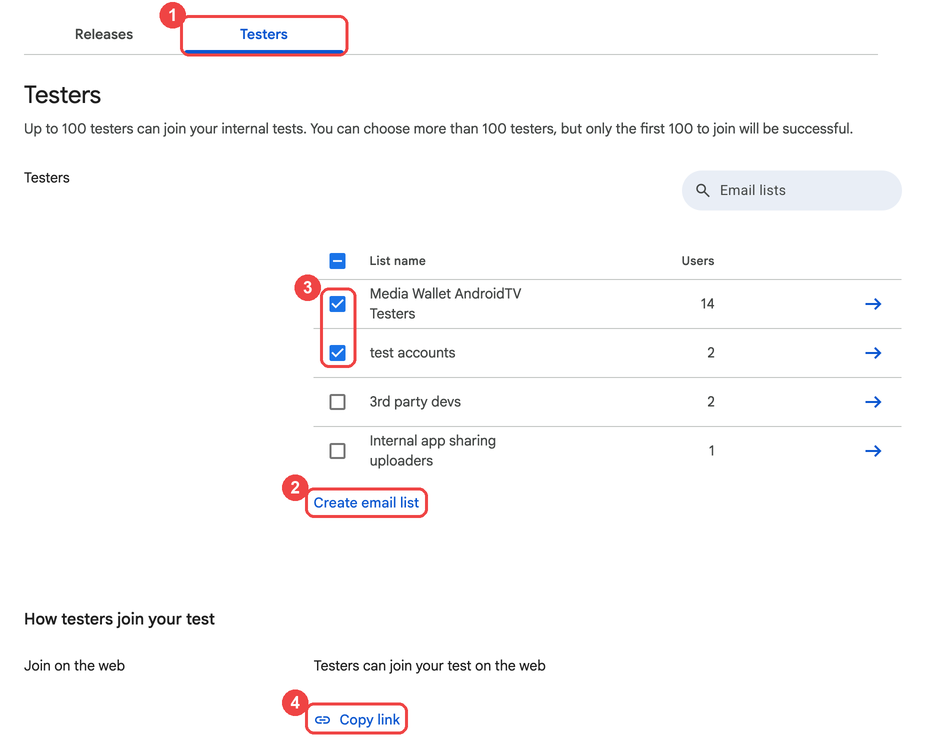
Open Test and release → Testing → Internal testing, then the Testers tab (1).
-
Click Create email list (2), give the list a name, and add your testers' Google account email addresses. Email lists belong to the developer account, so lists made for other apps show up here too and can be reused.
-
Tick each list that should get this app (3), then click Save.
-
Under How testers join your test, click Copy link (4) and send the link to your testers.
Install on the TV
Each tester:
-
Opens the opt-in link on a phone or computer, signed in to the same Google account they were added with, and accepts the invitation.
-
On the Android TV or Google TV device, makes sure that same Google account is the one signed in to the device.
-
Finds the app in the Google Play Store on the TV — search for it by name — and installs it.
It can take a little while after opting in before the app is visible on the device. If it still does not appear, check the app's Android TV status under Test and release → Advanced settings → Form factors (adding the Android TV form factor).
A release build installed by hand with tv-release.apk is signed with your upload key, not
Google's app signing key. Android will not update it from Google Play, so uninstall it
before installing the testing build. Debug builds, which carry a .debug package name,
can stay.
Closed and open testing (optional)
To test with people outside your organization, use a closed or open testing track. These reach far more testers, but each release goes through Google's review first.
Organization accounts are not required to run a closed test before going to production, so for most clients internal testing is enough.
What to actually test
At minimum, on real Android TV or Google TV hardware:
- App launches and shows your property's start screen with your logo and background
- Your banner and app name appear correctly in the TV home screen's apps row
- Sign-in works end to end
- DRM-protected video plays, seeks, and resumes
- D-pad navigation on the remote reaches everything — no focus traps, no unreachable buttons
- Back behaves sensibly everywhere, and backing out of the start screen leaves the app
- The app recovers from being backgrounded and relaunched
- Behavior is sane with no network connection
The remote-navigation items matter more than usual: Google's Android TV app quality review checks for exactly these.
This is also the moment to capture your TV screenshots, since you have a working build on real hardware.
Next
When the build looks right, prepare the store listing and submit.