Enroll your organization in the Apple Developer Program
One membership covers all of your company's apps, so if you are already enrolled there is nothing to re-enroll. Jump to adding your team.
Three things to confirm before you skip:
- The membership is the Organization type, not Individual. An Individual membership cannot have additional users, so you could not add colleagues or grant Eluvio access. To change entity type, contact Apple Developer Support — it is not a self-service setting.
- The membership is active, not lapsed. It renews annually.
- You still need two things from this page: your Team ID and the required agreements, which must be signed before you can submit.
This creates the "team" that will own your app, your signing certificates, and your App Store listing. No code or Mac is involved in this step.
An Individual account cannot have multiple users, so you would not be able to add colleagues or grant Eluvio access, and the App Store would list your personal name as the seller.
Get a D-U-N-S number
Apple requires a D-U-N-S number registered to your legal entity for organization enrollment. It is a free nine-digit business identifier issued by Dun & Bradstreet.
-
Go to Apple's D-U-N-S lookup. You will be asked to sign in with an Apple Account first.
-
Enter your company's legal name, country, and address.
-
If a matching record exists, note the number. If not, request one through the same form — allow up to 5 business days for D&B to issue it.
Requirements that trip people up:
- Your business must be a recognized legal entity — corporation, LLC, limited partnership. DBAs, fictitious business names, trade names, and branch offices are not accepted.
- The legal entity name on your D-U-N-S record must exactly match your registered name. A mismatch here is the single most common cause of enrollment rejection. Fix the D&B record before enrolling, not after.
Create an Apple Account for the organization
Do not enroll using a personal Apple Account tied to an individual employee. When that person leaves, you lose control of the account, and transferring an Account Holder role is slow and painful.
-
Create a shared company email address you control, for example
apple-developer@yourcompany.com. A distribution list or shared mailbox is ideal. -
Create an Apple Account with that address at account.apple.com.
-
Enable two-factor authentication. Apple requires it for the Apple Developer Program, and enrollment will not proceed without it. Use a phone number that will outlast any single employee's tenure — ideally a company-owned device or VOIP line.
-
Store the credentials and 2FA recovery details in your company password manager.
Make sure the account's details are accurate and current — legal name, address, phone number, trusted phone number. Apple checks these against the photo ID of whoever enrolls, and a mismatch stalls the application.
This account becomes the Account Holder. It is the only role that can sign legal agreements, renew the membership, and manage the most sensitive settings. Treat it as shared infrastructure, not as one person's login.
Submit the enrollment
Organization enrollment runs through the Apple Developer app, not a web form. Install it from the App Store on the device you intend to use.
Before you start:
- You must use the same device for the whole process. You cannot begin on an iPhone and finish on a Mac.
- On a Mac, the app requires Apple Silicon or a T2 chip.
- Be signed in to iCloud on that device.
- Have a government-issued photo ID to hand — passport or driver's licence. Enrollment includes an identity check that you photograph in the app.
Then:
-
Open the Apple Developer app and go to the Account tab.
-
Sign in with the shared account you just created. It does not have to be the Apple Account the device itself is signed in with.
-
Review and accept the Apple Developer Agreement, then choose Enroll Now.
-
Enter your legal first name, last name, and phone number — not a nickname or an alias. These are checked against your ID.
-
Photograph your government-issued photo ID when prompted.
-
Choose Organization as the entity type.
-
Provide your organization's details:
- Legal entity name — exactly as on the D-U-N-S record
- D-U-N-S number from the first step
- Headquarters address and phone number
- Website — must be a live site on your company's domain that corroborates the company's existence
- Signing authority — you must have legal authority to bind the organization (owner, executive, or a senior employee with that authority), plus contact details for someone who can verify it. If you don't have it, hand this step to someone who does.
-
Accept the Apple Developer Program License Agreement and Subscribe.
Payment happens here, not after approval. The membership is an auto-renewing annual subscription charged to the payment method on the Apple Account. Nonprofits, educational institutions, and government organizations can request a fee waiver at this step.
Verification
Apple then reviews the submission and emails you next steps. For organizations they will typically call the phone number on your D&B record to confirm you are authorized to enroll. Make sure whoever answers that line knows the call is coming.
-
Watch the shared inbox for Apple's messages. Respond quickly — stalled enrollments often just need one document.
-
If Apple requests proof of your legal entity, send official registration paperwork (articles of incorporation, business license), not a screenshot of your website.
Record your Team ID
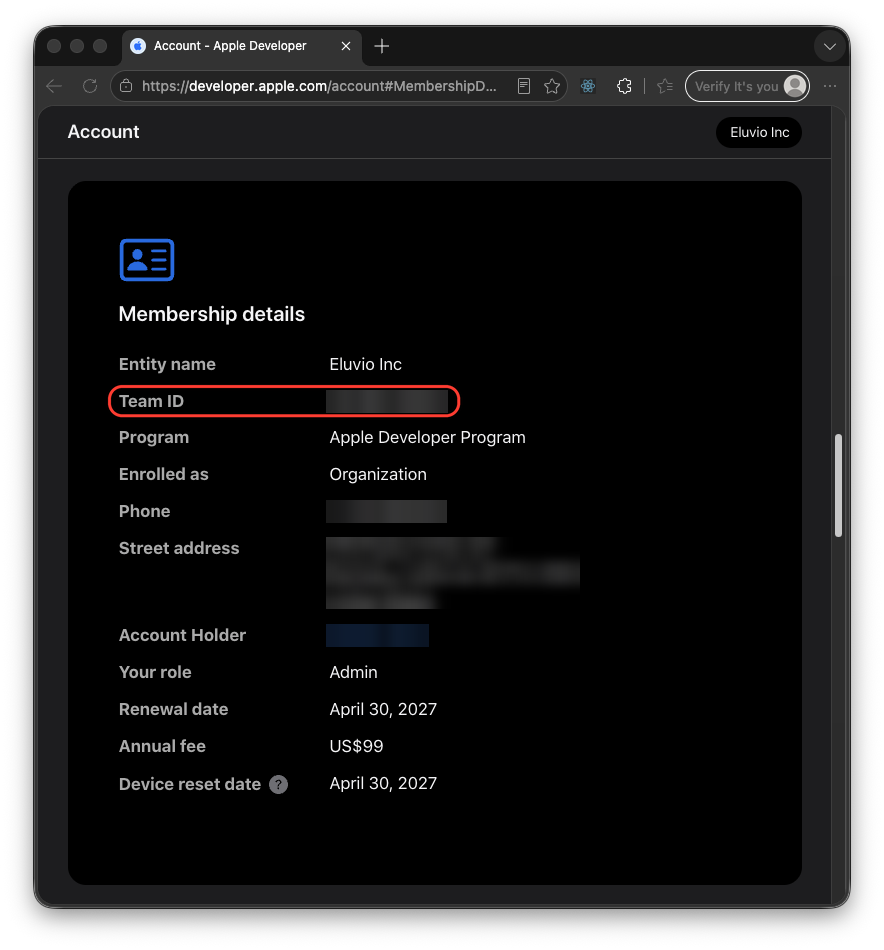
After approval, go to developer.apple.com/account → Membership details.
Note your Team ID — a 10-character string like A1B2C3D4E5. You will need it when
configuring Xcode signing, and it is
useful in every support conversation with Apple.
Sign the required agreements
-
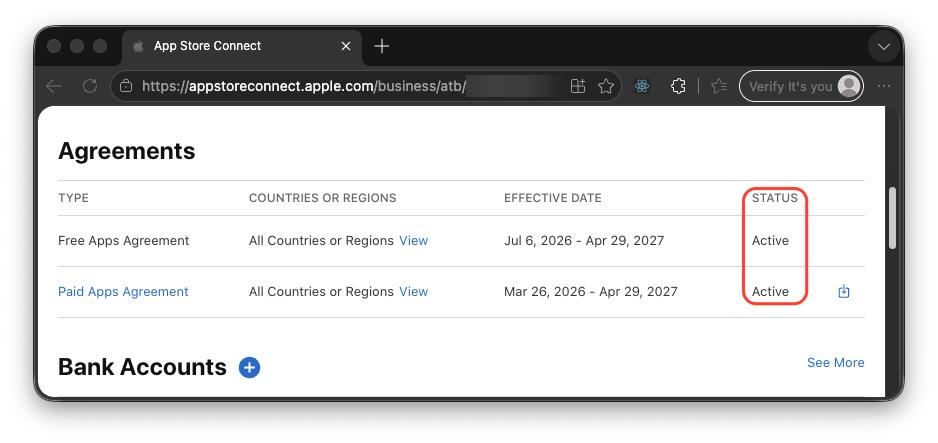
Go to App Store Connect → Business (formerly "Agreements, Tax, and Banking").
-
The Free Applications agreement is accepted automatically.
-
If your app will ever charge money — paid download, in-app purchase, or subscription — the Account Holder must sign the Paid Applications agreement and complete tax and banking information. Apps cannot be submitted with monetization until this is done and shows Active.
If your property sells content, Apple guideline 3.1.1 generally requires unlocking digital content inside the app to go through Apple In-App Purchase, with Apple's commission. How your property is configured determines whether this applies.
Getting this wrong is the most expensive mistake available at this stage — it can mean a rejected submission and an architectural change. Raise it with your Eluvio contact before you submit.
Next
With the team in place, add the people who need access.