Store listing and submission
The Developer role can upload builds but cannot submit to the App Store. Only your Account Holder, Admin, or App Manager can, so even if Eluvio built and uploaded the app, the listing and the submission come back to you.
You are also the party Apple holds responsible for what is on this page: the privacy declarations, the age rating, and the content rights.
The last step, and entirely browser work — no Xcode. Go to App Store Connect → Apps → your app → the Distribution tab, then pick the version under tvOS App in the sidebar. It will read 1.0 Prepare for Submission.
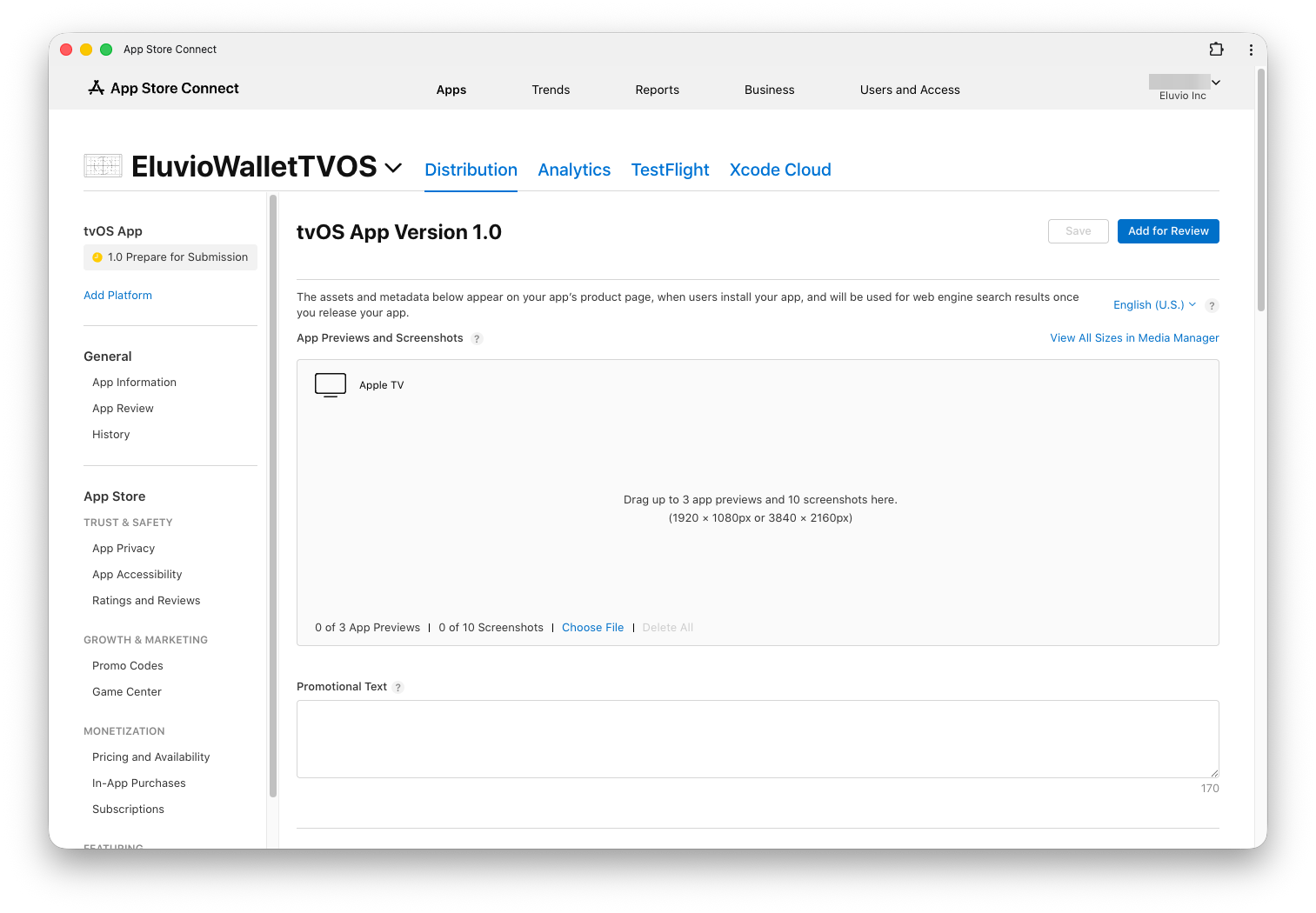
This version page holds the screenshots, the description, and App Review Information. The sidebar holds the rest: App Privacy and Ratings and Reviews under Trust & Safety, Pricing and Availability under Monetization, and App Information under General. Each is a common source of rejection or delay.
Screenshots
Required. Apple TV screenshots must be exactly:
- 1920 × 1080 px, or
- 3840 × 2160 px
Format: .png, .jpg, or .jpeg. No alpha channel and no transparency — an
otherwise-valid PNG with an alpha channel is rejected at upload. You may supply 1 to 10;
supply at least 3 that show real content.
The most reliable way to capture them is from a real device via Xcode: Window → Devices and Simulators → select your Apple TV → Take Screenshot. This produces correctly sized, alpha-free images.
Show your actual app. Screenshots that are mostly marketing copy, or that show content the app doesn't contain, get rejected.
Description, subtitle, and keywords
- Promotional text (170 chars) — changeable without a new build. Good for "new this week" messaging.
- Description (4000 chars) — what the app does. Do not mention other platforms, do not include prices, do not reference competitors.
- Keywords (100 chars total, comma-separated) — no spaces after commas, no competitor names, no trademarked terms you don't own.
- Support URL — must be live and actually offer support.
- Marketing URL — optional.
App Privacy
Required before you can submit. App Privacy is in the sidebar, under Trust & Safety.
You must declare every category of data your app collects, whether you or a third-party SDK does the collecting. For this app, that includes anything gathered by Firebase Analytics and by the Mux playback-analytics SDK if those are enabled in your build.
- A privacy policy URL is mandatory and must be live before you submit.
- Confirm with your Eluvio contact exactly what the SDKs in your build collect. Guessing here creates both a rejection risk and a compliance risk.
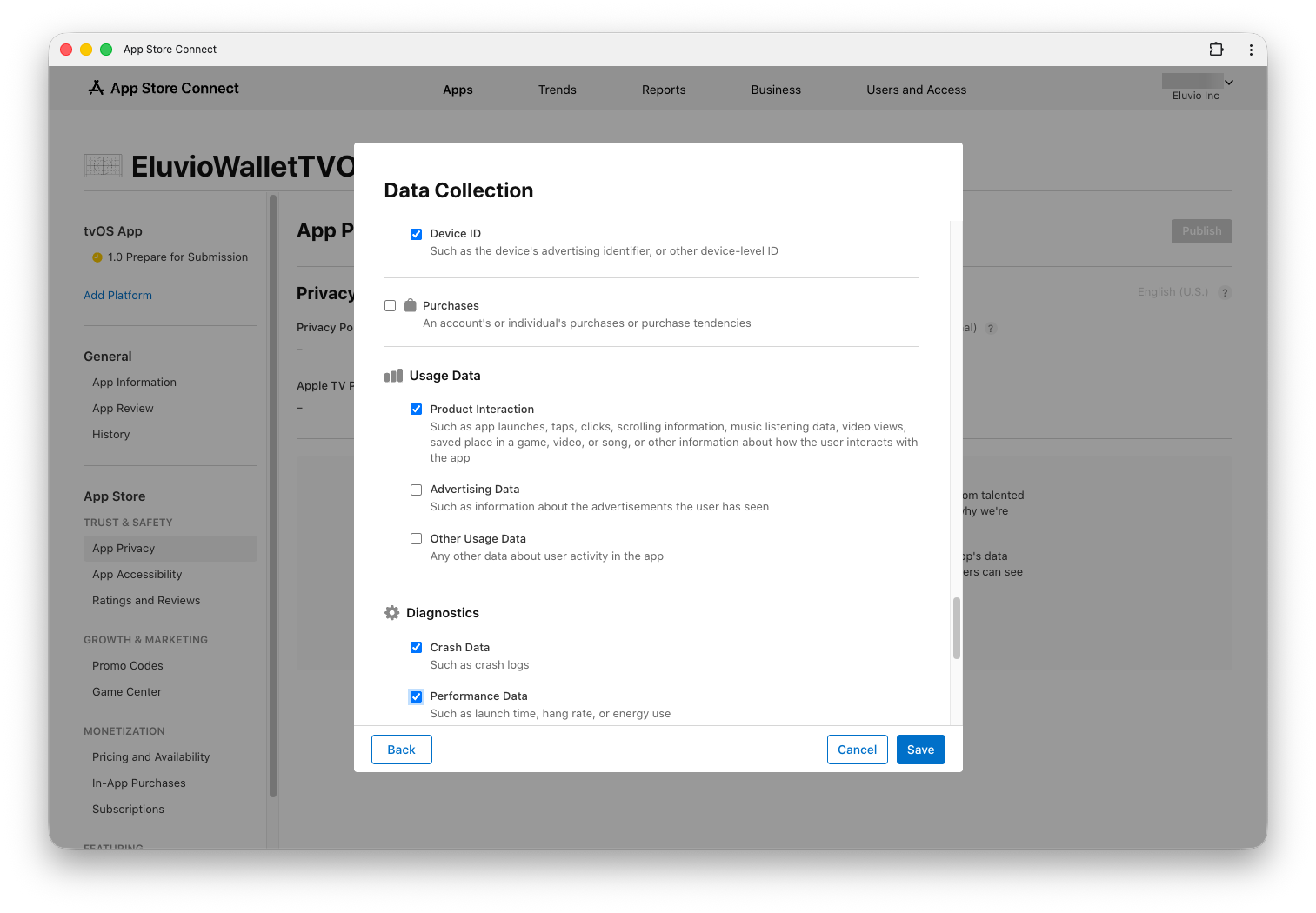
Device ID, Product Interaction, Crash Data and Performance Data are what a build with both Firebase Analytics and Mux enabled collects. Turn either SDK off, or add anything of your own, and the correct answers change. Check your own build rather than copying this set.
Age rating
Complete the age-rating questionnaire honestly, based on the content your property actually serves. Under-rating is a rejection cause and can get an app pulled after release.
Sign-in information for App Review
This is the most common reason white-label media apps get rejected.
App Review must be able to see your content. If your app requires an account, and this one does, reviewers cannot proceed without working credentials.
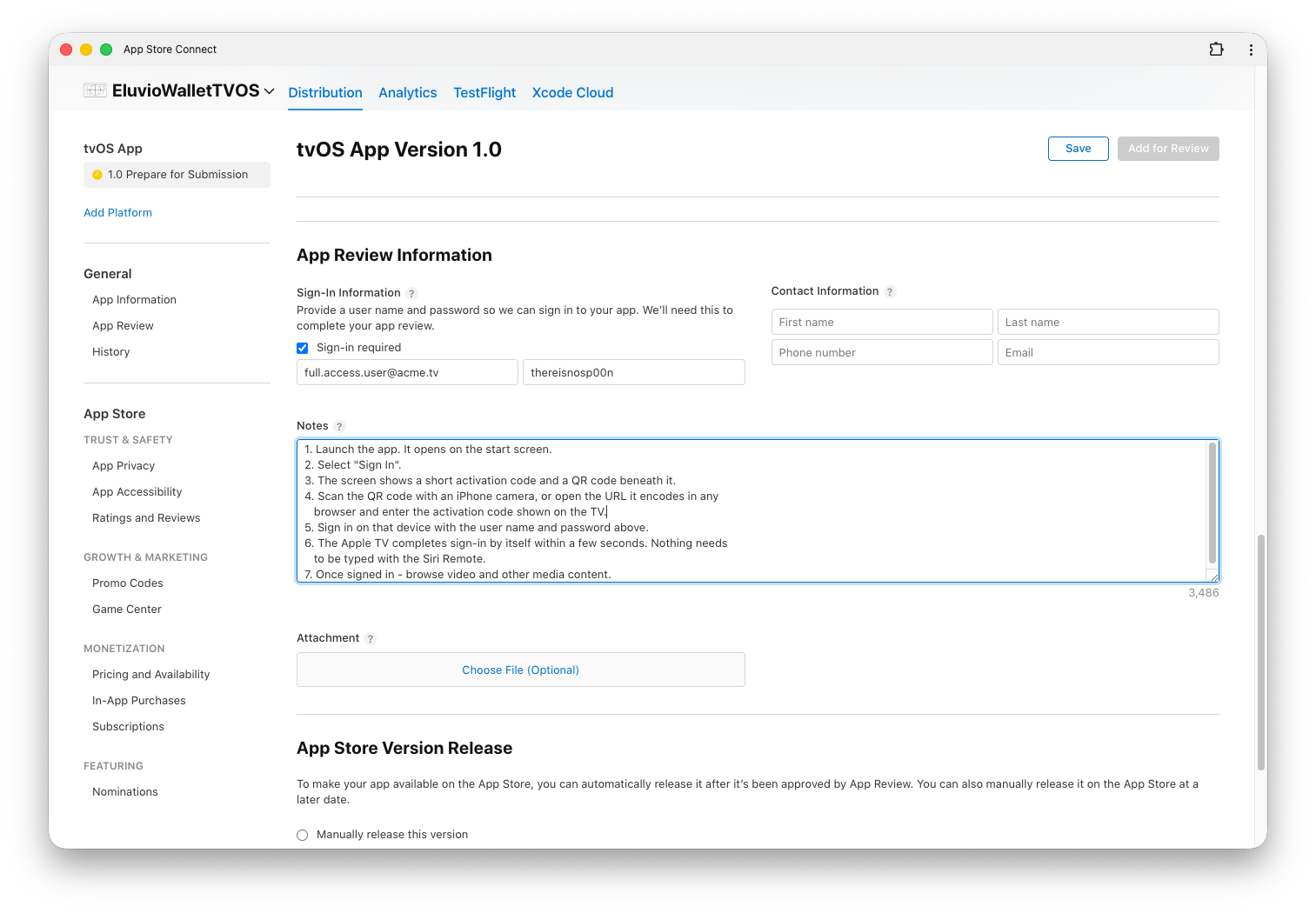
Scroll down the version page — the same 1.0 Prepare for Submission page you have been filling in — to App Review Information. It is a section on that page, not the App Review item in the sidebar, which is somewhere else entirely.
It has four parts:
- Sign-In Information — check Sign-in required, then give a demo user name and password that works and will keep working for weeks.
- Notes — describe anything a reviewer could not work out from the screen. For this app that means the sign-in flow itself: it shows a QR code and an activation code, and is completed on a phone or computer rather than on the Apple TV. A reviewer who does not realise a second device is involved has no way forward, so spell out the steps.
- Contact Information — a real person who will answer promptly.
- Attachment — optional. Skip it unless there is something a reviewer genuinely needs.
Give the account full access to everything the app can reach. Every property, every title, anything ordinarily gated behind an entitlement or a purchase. This is worth more care than it sounds: a reviewer who wanders into content the account cannot play will be shown a purchase prompt, and a purchase prompt that is not Apple In-App Purchase is a rejection under guideline 3.1.1. Entitling the demo account completely is the cheapest way to keep the reviewer away from that path.
Verify the demo account works on a real device immediately before you submit. An expired or entitlement-less demo account is an automatic rejection under guideline 2.1, and it costs you a full review cycle.
Pricing and availability
Set price (or Free) and choose territories. Availability must be consistent with the rights you actually hold for your content — do not ship worldwide if your licenses are regional.
Submit for review
-
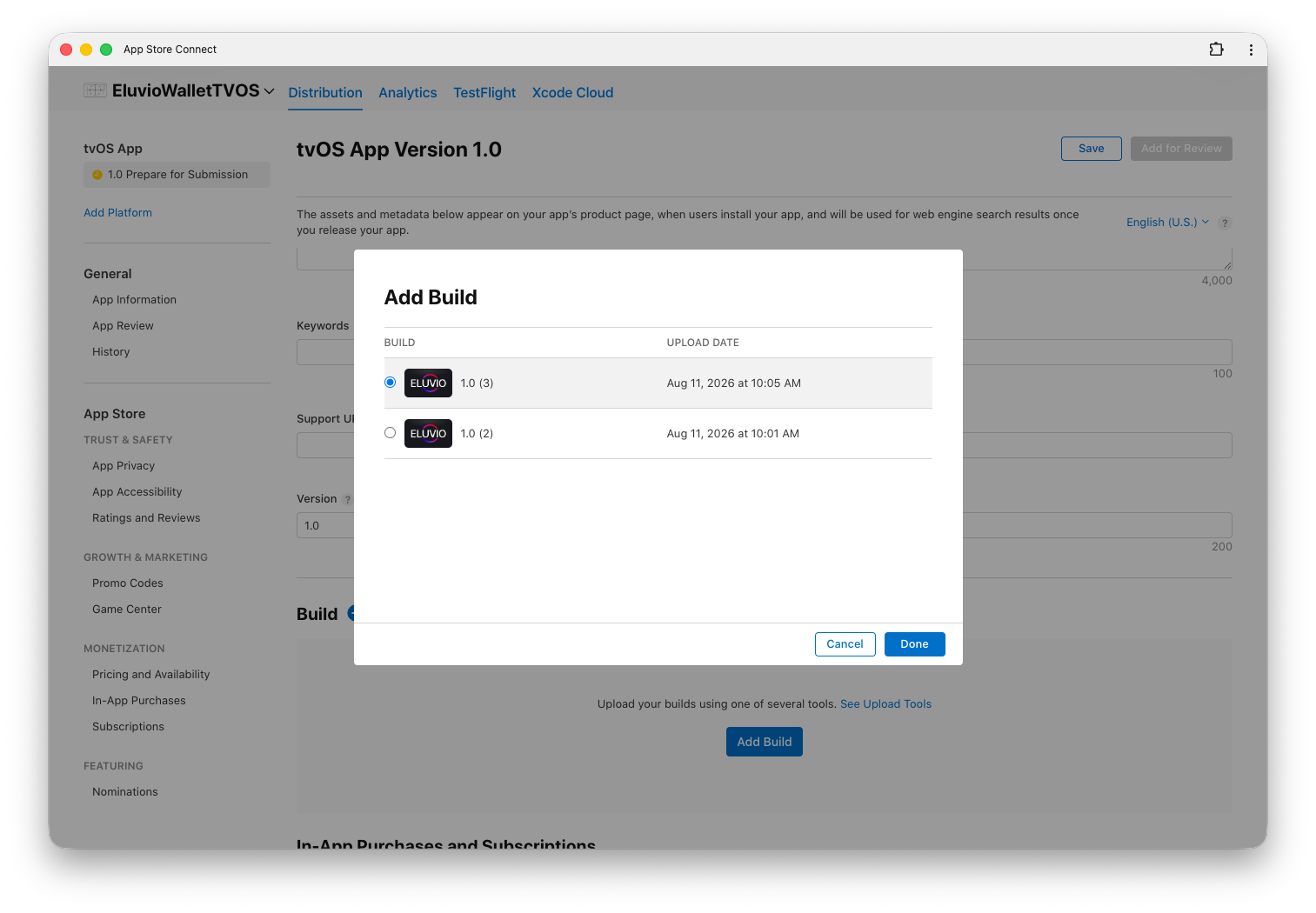
On the version page, scroll to Build and click Add Build.
-
Select the build you uploaded and tested, then click Done. The list gives version, build number and upload time; consecutive uploads differ only by build number and a few minutes, so match the build you actually tested rather than taking the top row on trust.
-
Choose your release option:
- Automatically release once approved
- Manually release — recommended for a first launch, so you control the moment
- Scheduled release on a date you pick
-
Click Save. Add for Review stays greyed out until every required field on the version is filled in, so if it is not clickable something above is still incomplete.
-
Click Add for Review, then Submit to App Review.
The status becomes Waiting for Review, then In Review. First reviews usually complete within 1–3 days.
If you are rejected
Rejection is routine, especially on a first submission. You will get a message in App Store Connect → App Review explaining which guideline was cited.
-
Read the actual guideline text, not just Apple's summary.
-
If it is a misunderstanding — common with white-label apps, where reviewers may not grasp the content model — reply in Review Notes with a clear explanation. You do not always need a new build.
-
If a fix is needed: change it, bump the build number, re-archive, re-upload, re-submit.
-
Loop in your Eluvio contact for anything about the content model, DRM, or wallet behavior. These questions recur across clients and have known answers.
Guidelines most relevant to this app:
| Guideline | What it covers |
|---|---|
| 2.1 | App completeness — the demo-account failure lands here |
| 3.1.1 | In-app purchase for unlocking digital content |
| 4.2 | Minimum functionality — must be more than repackaged web content |
| 5.1.1 | Data collection, privacy policy, account deletion |
| 5.2 | Intellectual property — be ready to show you have rights to your content |