Add your team members
This is where you grant them the access that makes that possible. See give Eluvio access.
Now that the organization exists, add the people who need access. Roles are managed in App Store Connect and apply to the Apple Developer website as well.
Understand the roles
Grant the least privilege that lets someone do their job. In practice that is Developer for engineers, App Manager for whoever runs releases, and Admin for one or two trusted people. The full list:
All eight App Store Connect roles
| Role | Can do | Give it to |
|---|---|---|
| Account Holder | Everything. The only role that can sign legal agreements, renew the membership, and request App Store Connect API access. Exactly one per team. | The shared company account |
| Admin | Nearly everything except signing legal agreements. Full access to all apps and to Certificates, Identifiers & Profiles. Can add users. | 1–2 trusted senior people |
| App Manager | Manage an app end to end: pricing, store listing, TestFlight, submit for review. Can add users. Can be limited to specific apps. | Your release manager / product owner |
| Developer | Build and deliver: upload builds, manage certificates and profiles, manage TestFlight builds. Cannot submit to the App Store. | Engineers, and Eluvio if they are helping you build |
| Marketing | Manage marketing assets and promotional artwork. | Marketing staff |
| Sales | View sales, downloads, and analytics. | Business/analytics staff |
| Customer Support | Read and respond to customer reviews. | Support staff |
| Finance | Financial reports, payments, tax forms. Views all app info. | Finance staff |
Two constraints worth knowing up front:
- Admin and Finance always see every app. Their access cannot be scoped to a subset.
- Certificates, Identifiers & Profiles access is a separate toggle. A user who has it can see all app information regardless of per-app scoping.
Invite a user
Requires Account Holder, Admin, or App Manager.
-
Sign in to App Store Connect.
-
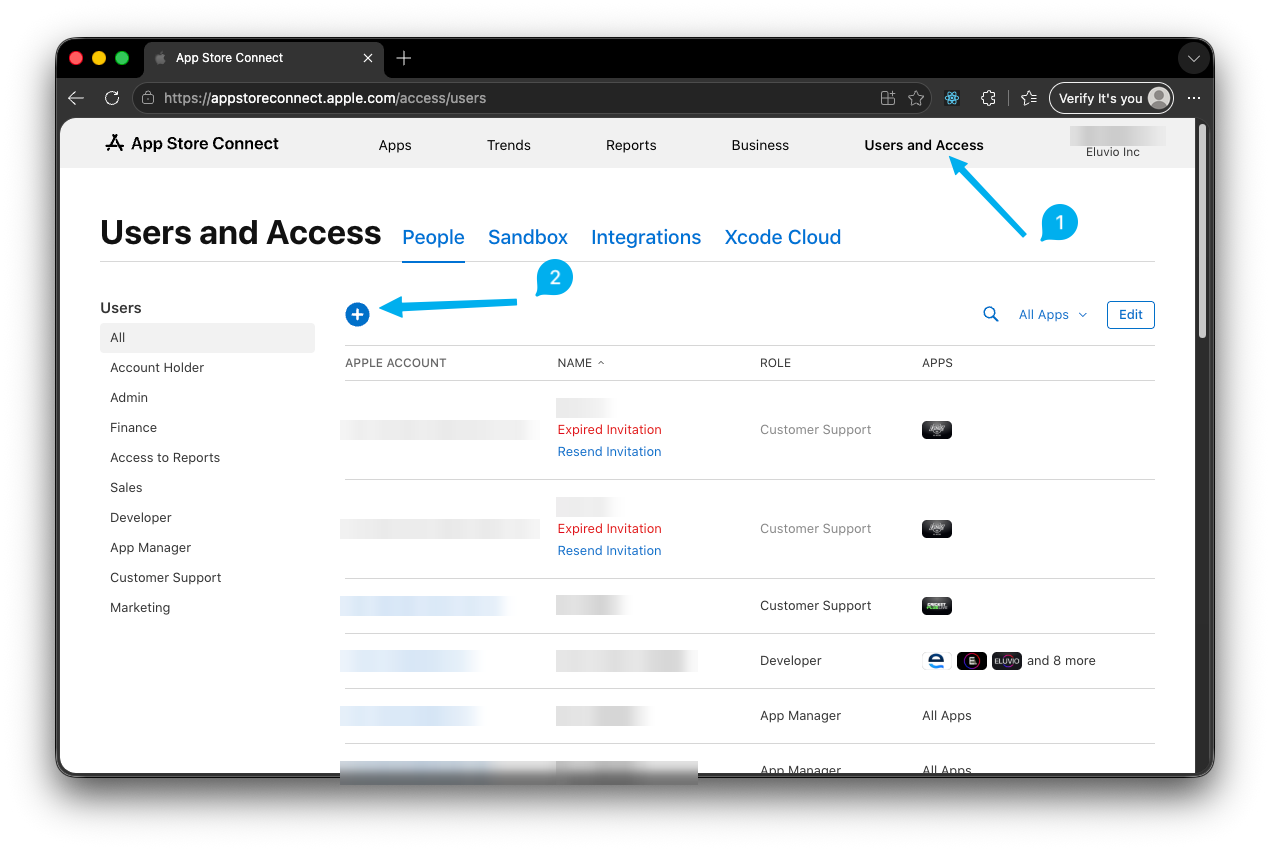
Open Users and Access (1), then under People click the + button (2).
-
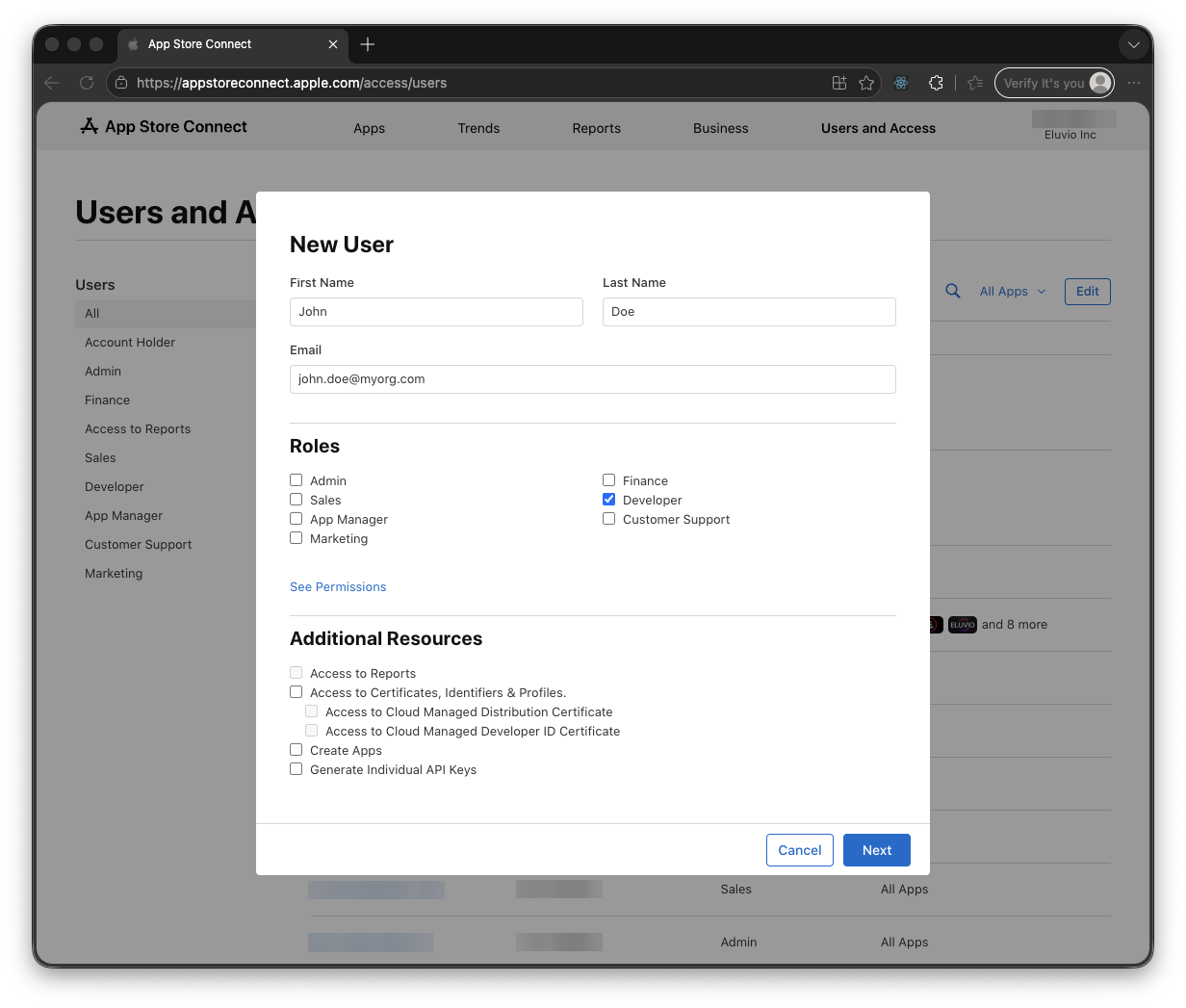
Enter First name, Last name, and Email address. The email does not need to already be an Apple Account — the invitee can create one during activation.
-
Select one or more roles from the table above.
-
Decide on Reports access and Certificates, Identifiers & Profiles access. Engineers who will archive and upload from Xcode need the latter, though with automatic signing Xcode can usually manage without it if they hold the Developer role.
-
Click Next. For App Manager, Developer, Marketing, Sales, and Customer Support without reports access, select which apps they may access.
-
Click Invite.
What the invitee does: they get an email with an activation link. They sign in with an existing Apple Account or create one. They must enable two-factor authentication.
Invitations expire after 3 days. If someone misses the window, return to Users and Access and resend. Also note that when you remove a user, revocation can take up to 10 minutes to propagate.
Optional: give Eluvio access
If you want Eluvio to help build, debug, or upload on your behalf, invite your Eluvio contact as a Developer. That is enough to build, sign, and upload builds, and it deliberately stops short of letting them submit to the App Store or change your pricing — those stay with you.
Ask your Eluvio contact which email address to use rather than guessing. You can remove the access at any time from the same screen once your release is out.
Next
Register the app to reserve its bundle identifier and create its store listing record.